
Top Navigation
Configure the navigation bar that appears at the top of your website
Top Navigation
The top navigation bar is the header bar, in your primary color, that appears at the top of every page on your website. It contains links that help visitors navigate your site.
How It Works
The top navigation bar is driven by a Menu entity. You create a menu with the links you want (see Menus and Navigation), then select that menu in the navigation settings. The menu's items become the links in the top navigation bar.
Configuring the Top Navigation
- Make sure you have already created a menu with the items you want to appear in the top nav. If you have not, go to
/dashboard/admin/menusand create one first. - Navigate to
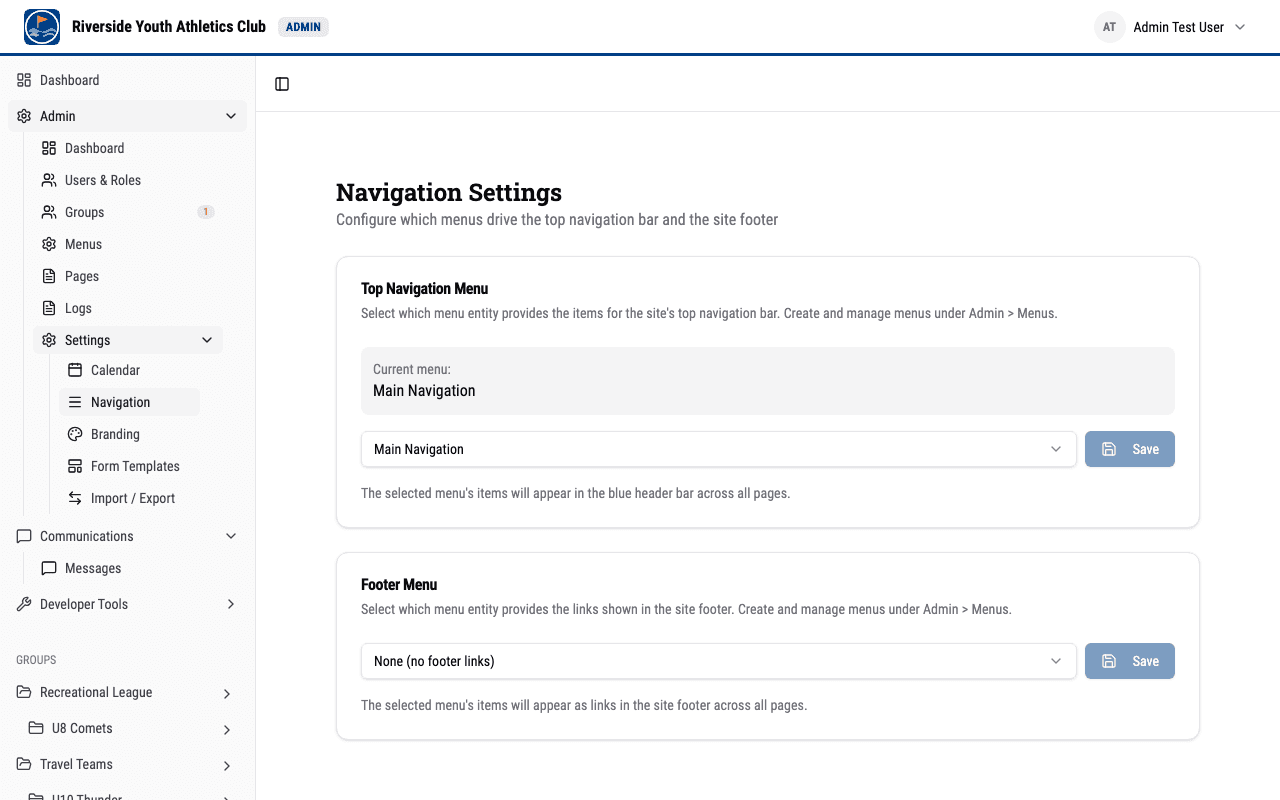
/dashboard/admin/settings/navigation/. - Use the dropdown to select which menu should drive the top navigation bar. Only active menus are shown in the list.
- Click Save.
- Refresh the page to see your changes take effect.
Setting to None
If you select None from the dropdown, the top navigation bar will appear without any links. The header logo (or organization name) will still be displayed, but there will be no navigation items.
What Appears in the Top Nav
The top navigation bar shows the items from the selected menu:
- Items are displayed in the order you configured (by their Order value).
- Highlighted items appear with a visually distinct style, making them stand out from regular links. Use this for calls to action like "Join Us" or "Register."
- Items set to Open in New Tab will open in a new browser tab when clicked.
- Inactive items are hidden and do not appear in the navigation.
- Dividers (the "Divider After" option on menu items) add visual separation between groups of links.
- Child items (nested under a parent) appear in a dropdown under their parent. The parent stays clickable -- selecting it navigates to its own page, while the chevron beside it opens the dropdown. On phones and smaller tablet screens the chevron is still there, but tapping it expands the child links inline underneath the parent instead of opening a panel over the page. Nesting goes one level deep.

Tips for an Effective Top Navigation
- Keep it concise. Aim for 5 to 7 top-level items. Too many links make the navigation harder to scan.
- Put the most important links first. Visitors tend to look at the first few items.
- Use highlight for your primary call to action. If you want visitors to sign up or register, highlight that link so it stands out.
- Use one level of nesting for related links. If a section needs several related links, make them children of a single top-level item so they group into one dropdown instead of crowding the bar. Keep the parent itself a real destination, since visitors will click it.
- Test on mobile. The navigation bar adapts to smaller screens. Make sure your most important links are easy to reach on phones and tablets.
Footer Menu
The same navigation settings page (/dashboard/admin/settings/navigation/) has a separate Footer Menu card. Just as the top-nav card selects the menu that drives the header, the Footer Menu card selects which menu drives the links shown in the site footer.
- Navigate to
/dashboard/admin/settings/navigation/. - In the Footer Menu card, use the dropdown to choose which menu should drive the footer links.
- Click Save.
- Refresh the page to see your changes take effect.
Selecting None leaves the footer without any menu links. The footer menu selection is independent of the top-nav menu selection -- the two can point at different menus (or the same one).