
Managing Pages
Create, edit, publish, and organize pages on your organization's website
Managing Pages
Pages are the building blocks of your organization's website. Each page has a page address, a template that determines its layout, and content you fill in through the admin dashboard.
The Pages List
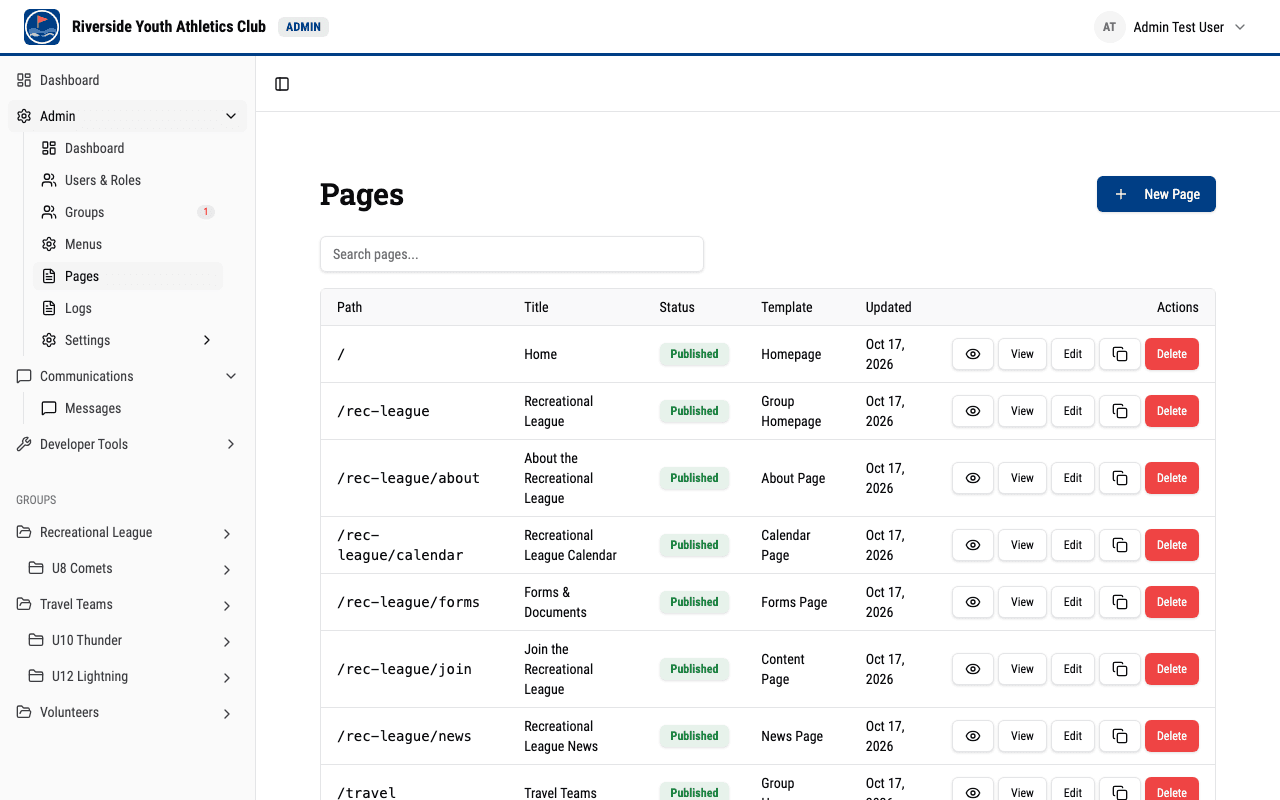
Navigate to /dashboard/admin/pages to see all your pages. The list shows:
- Title -- The page name.
- Full page address -- Where the page lives on your site (e.g.,
/rec-league/about). - Template -- Which template the page uses (e.g., About, News, Content Page).
- Status -- Whether the page is published (live) or in draft.
- Last Updated -- When the page was most recently edited.
Creating a New Page
- Go to
/dashboard/admin/pagesand click the New Page button. - Choose a template. Each template provides a different layout and set of fields. See Page Templates for a full list.
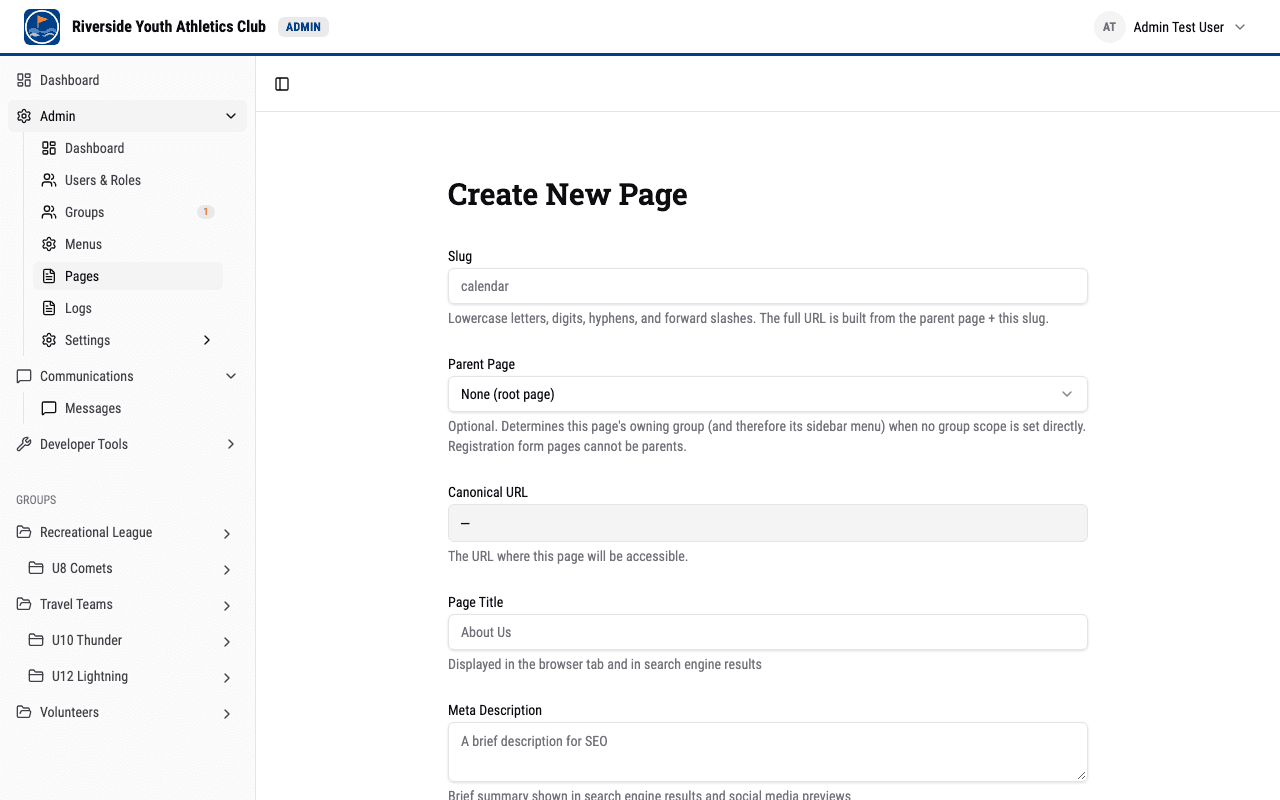
- Enter a Page address. This is the last part of the page's full address. Use lowercase letters, numbers, hyphens, and forward slashes (no leading, trailing, or consecutive slashes). For example:
aboutorresources/handbook. - Choose a Parent Page (optional). This is the page your new page nests under. The full page address is the parent's address plus this page address (e.g., parent
/rec-league+ page addressabout→/rec-league/about). Leave the parent empty for a top-level page (the full page address becomes/<page address>). - A live Full page address preview shows the result as you type.
- Fill in the content fields. The available fields depend on the template you chose.
- Click Save to create the page. Hubara builds the full page address from the parent plus the page address -- you do not type the whole address.
Page address rules
When choosing a page address and parent for your page, keep these rules in mind:
- Page addresses use lowercase letters, numbers, hyphens, and forward slashes, with no leading, trailing, or consecutive slashes.
- The full page address is the parent page's address plus
/plus the page address. Top-level pages omit a parent, so their full page address is just/<page address>. - Certain addresses are reserved by the system and rejected. Reserved addresses include:
- Exact addresses:
/,/login,/profile,/invite,/join, and/showcase. - Anything under
/announcements,/confirm,/api,/dashboard,/communications,/r,/claim,/sso, or/unsubscribe-- both the root itself and all descendants. - Any address whose second segment is
eventsorcalendar.ics(e.g.,/<group>/events,/<group>/calendar.ics).
- Exact addresses:
- If you enter a reserved address, you will see an error message and will need to choose a different one.
Editing a Page
- Go to
/dashboard/admin/pagesand click on the page you want to edit, or click the edit action. - Update the content fields as needed.
- Click Save to apply your changes.

Tip: You can preview your changes before publishing. Draft pages are visible at their URL when you are signed in as an admin, but they are not visible to the public. You can also open a dedicated preview at
/dashboard/pages/[pageId]/preview, which works for drafts too and shows a banner reading "Preview — Draft (not published)" for unpublished pages.
Publishing vs. Draft
Every page has a published status:
- Draft -- The page is only visible to signed-in admins. Use this while you are still working on content.
- Published -- The page is live and visible to everyone who visits your site.
To change a page's status, edit the page and toggle the published setting, then save.
Cloning a Page
If you need to create a page that is similar to an existing one, you can clone it:
- Go to the pages list.
- Find the page you want to duplicate and select the clone action.
- A new page is created with the same template and content. You will need to give it a new page address and title, then save.
This is useful when you have multiple groups that need similar pages (e.g., a separate About page for each one).
Deleting a Page
- Go to the pages list.
- Find the page you want to remove and select the delete action.
- Confirm the deletion.
Note: Deleting a page is permanent. The page and its content cannot be recovered after deletion.
Page Metadata
Each page has metadata fields that affect how it appears in browser tabs, search results, and social media previews:
- Title -- Appears in the browser tab and as the main heading in search results.
- Description -- A short summary shown in search engine results and when the page is shared on social media.
- OG Image -- An image shown when the page is shared on social media (Facebook, Twitter, etc.). If not set, a default image may be used.
These fields are available in the page editor regardless of which template you use.