
Page Templates
Understand the available page templates and when to use each one
Page Templates
When you create a new page, you choose a template that determines its layout and the content fields available to you. Below is a description of each template, when to use it, and the key fields you will fill in.
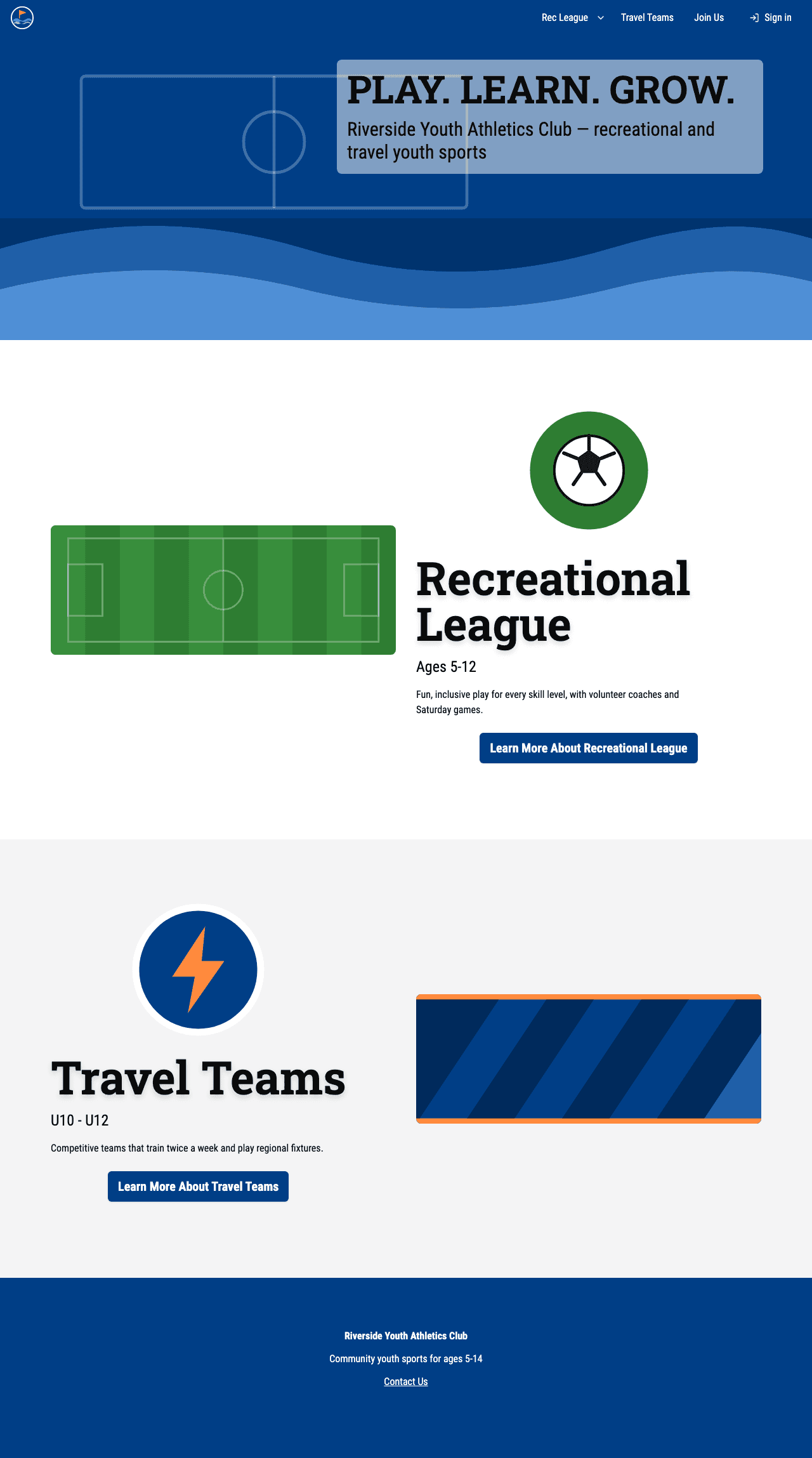
Homepage
The organization landing page with a hero banner and group call-to-action sections.
When to use it: Use this for your site's main / page -- the first thing visitors see.
Key fields:
- Hero Title -- The large heading displayed over the hero banner.
- Hero Subtitle -- Supporting text below the hero title.
- Hero Image -- A wide banner image for the hero section.
- Groups -- A list of group sections, each with a title, image, logo, age group label, description, link, background color, and layout direction. These create the call-to-action cards that direct visitors to each group's pages.
Group Homepage
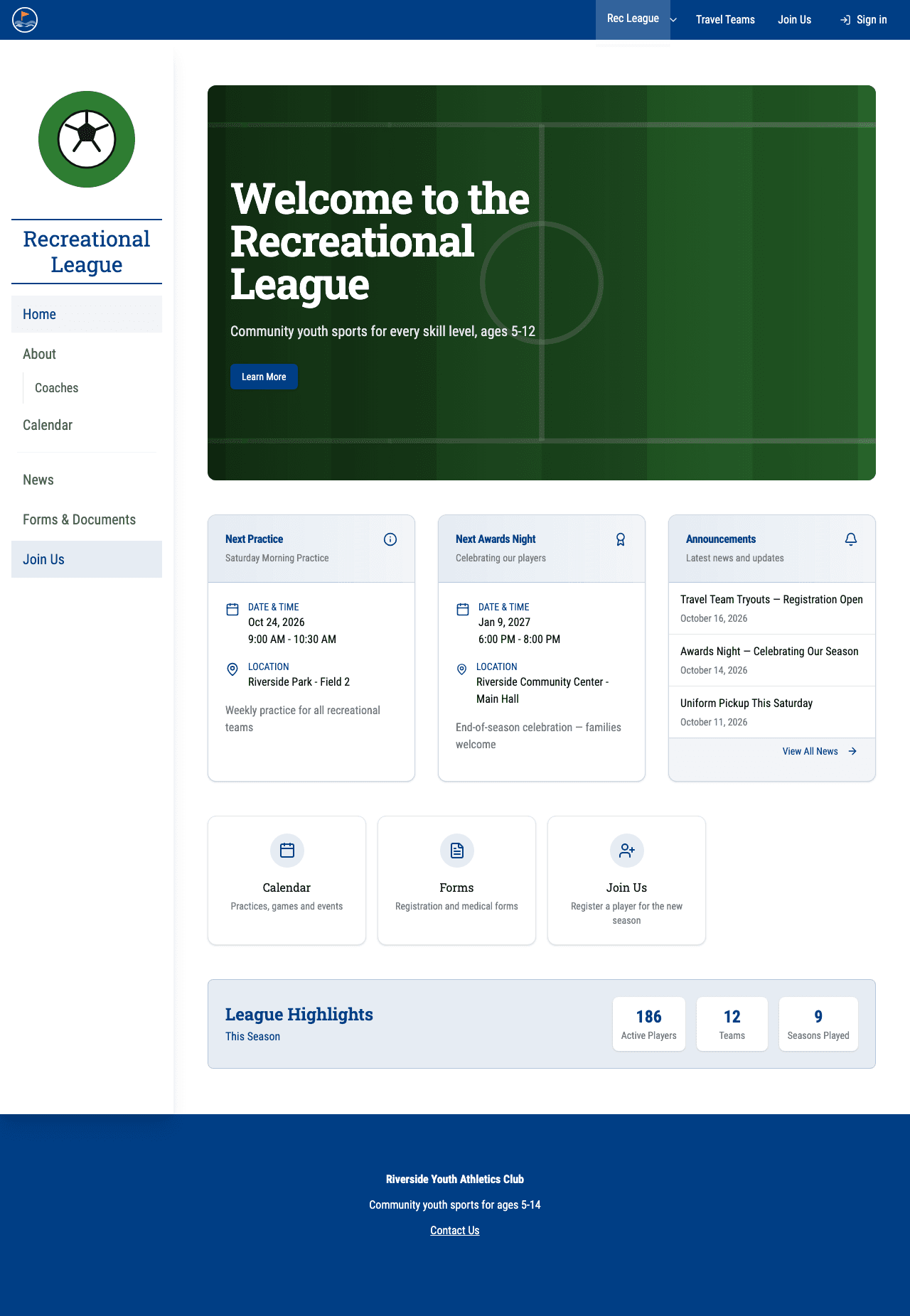
A feature-rich landing page for a specific group (for example, a league or team program). Includes a hero section, dynamic event cards, announcements, quick-link feature cards, and an achievements section.
When to use it: Create one for each group to serve as that group's home page (e.g., /rec-league or /travel).
Key fields:
- Hero Section -- Title, description, image, button text, button link, and button style.
- Event Cards -- Cards that automatically display the next upcoming event from your calendar. Each card is fully content-driven: pick the group whose calendar to search and the event tags to match, then write the card's own title, subtitle, event type, color scheme, icon, fallback text (shown when nothing upcoming matches), and an optional details link. When the matched event has open registration forms whose pages are published, the card also shows a button for each form, labelled with the form's title; the details link stays alongside them. A card with no Title is not shown on the published page. Event tags are picked from your organization's calendar tags; a tag that is no longer in that list shows as a red-bordered chip you can click to remove.
- Announcements -- A section title, subtitle, and link. If you leave the link blank, View All News opens the Announcements page filtered to the section's group (if no group is chosen, it opens the Announcements page with no group preselected). The announcements themselves always come from your Communications messages; see Website Announcements.
- Feature Cards (Quick Links) -- Cards with a title, description, link, color scheme, and icon. Great for linking to forms, calendar, signup pages, and other important resources.
- Achievements -- A section for highlighting metrics like "Players registered" or "Years active." Each metric has a numeric value, label, and color.
Content Page
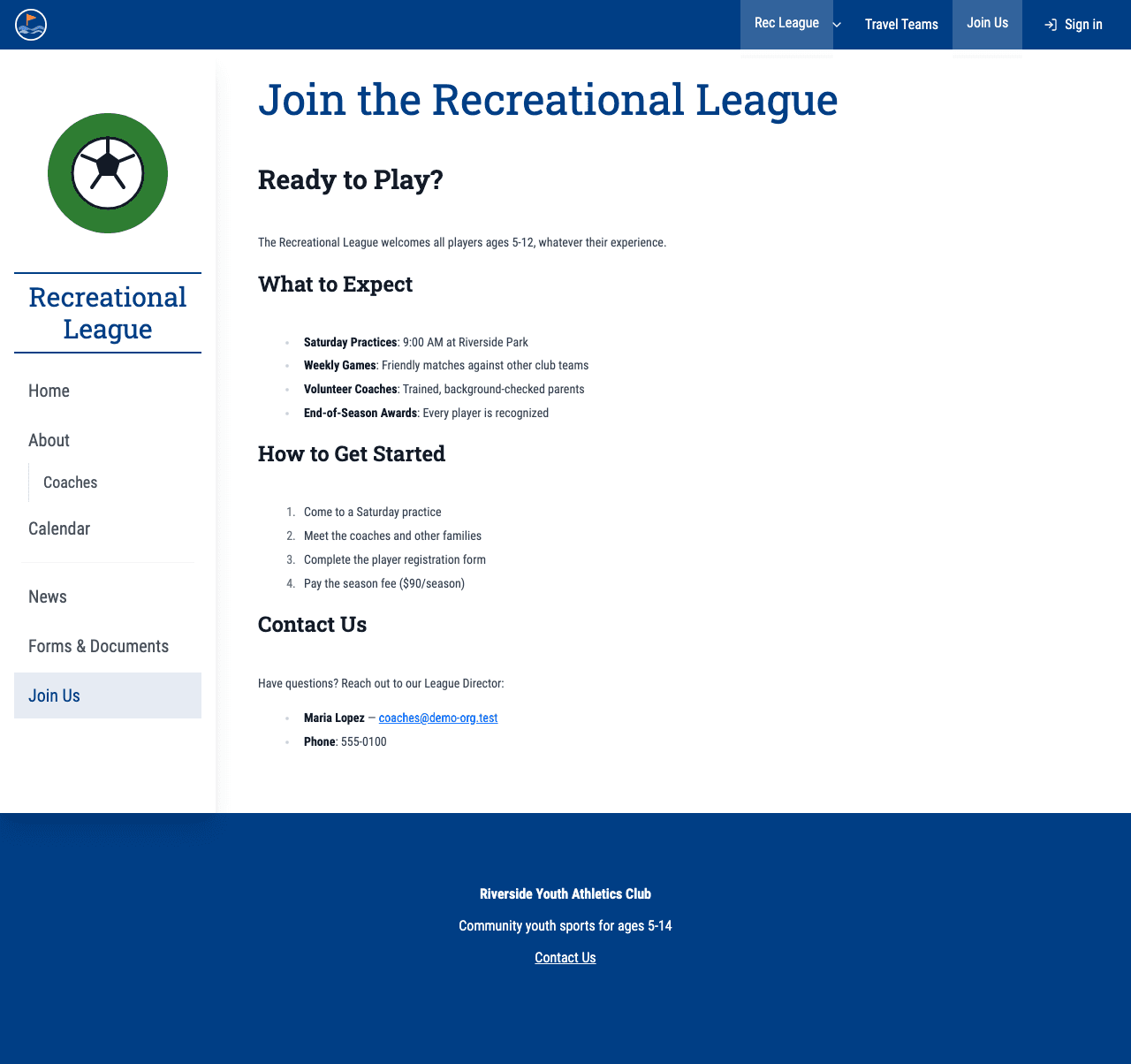
A general-purpose page with a banner heading and a markdown body. Great for informational pages like "Join Us," policies, packing lists, or any free-form content.
When to use it: Whenever you need a simple page with formatted text content.
Key fields:
- Banner Heading -- The page title displayed in the banner area.
- Page Content -- The main body of the page, written in markdown. Supports headings, bold, italic, links, lists, and more.
About
An organization info page with a description, meeting location, map link, and a list of contacts.
When to use it: Use this for a group's "About" page (e.g., /rec-league/about) when you need a straightforward layout with contact information.
Key fields:
- Page Title -- The heading for the about page.
- Description -- A markdown-formatted description of your organization.
- Location -- Location name, street address, and a link to a map (e.g., Google Maps).
- Contacts -- A list of contacts, each with an organization name, role/title, name, phone, and email.
Extended About Page
An extended about page for any organization or group. Includes all the sections of the standard About template plus a leadership list, subgroup leaders, meeting information, and a sign-up call to action.
When to use it: Use this for an organization's or group's about or info page when you need to show leadership contacts, the leaders of each subgroup, and a sign-up link.
Key fields:
- Banner Heading / Subheading -- The page banner text.
- Who We Are -- Markdown description of your organization.
- Where We Meet -- Location name, address, and map link.
- Info Sections -- Flexible cards for topics like "Uniforms," "When We Meet," or "What to Bring." Each has a title and markdown content.
- Sign Up CTA -- Title, description, button text, and URL for a sign-up call to action.
- Questions Contact -- Name, phone, and email for someone parents can reach out to.
- Leadership -- A list of leaders with role, name, phone, and email (e.g., Leader, Treasurer).
- Subgroup Leaders -- A list of subgroup leaders with subgroup name (e.g., "Kindergarten Group"), name, phone, and email.
News
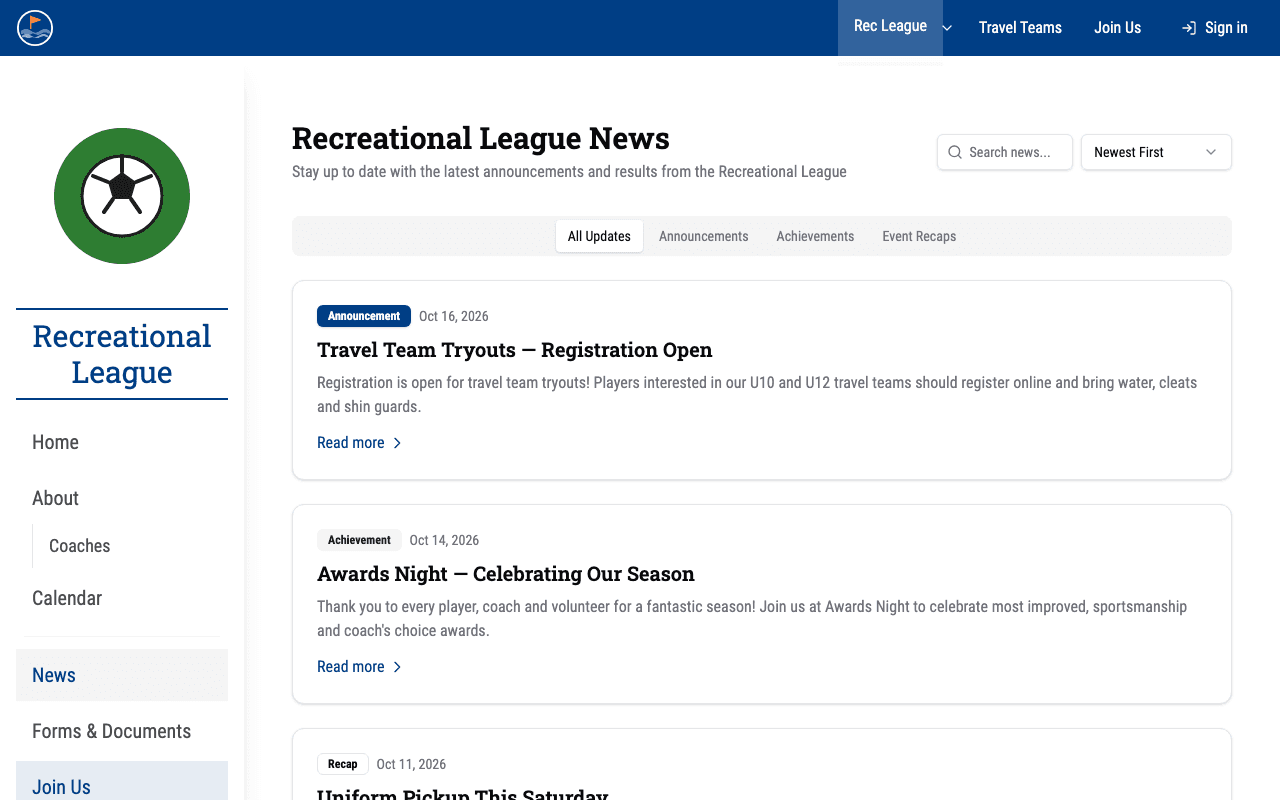
Displays announcements and news items. It always shows live content from your Communications messages -- published messages that have a Website Visibility other than "Not on Website". See Website Announcements.
When to use it: Use this for a news or announcements page for your organization or a specific group.
Key fields:
- Page Title -- The heading for the news page.
- Description -- A short intro displayed above the news items.
- Show news for group -- Which group's messages to show. Choose "All groups" for site-wide news, or a specific group for that group's page.
Tip: For a site-wide announcements page, set the group filter to "All groups." For a group-specific news page (e.g.,
/rec-league/news), filter to that group.
Forms
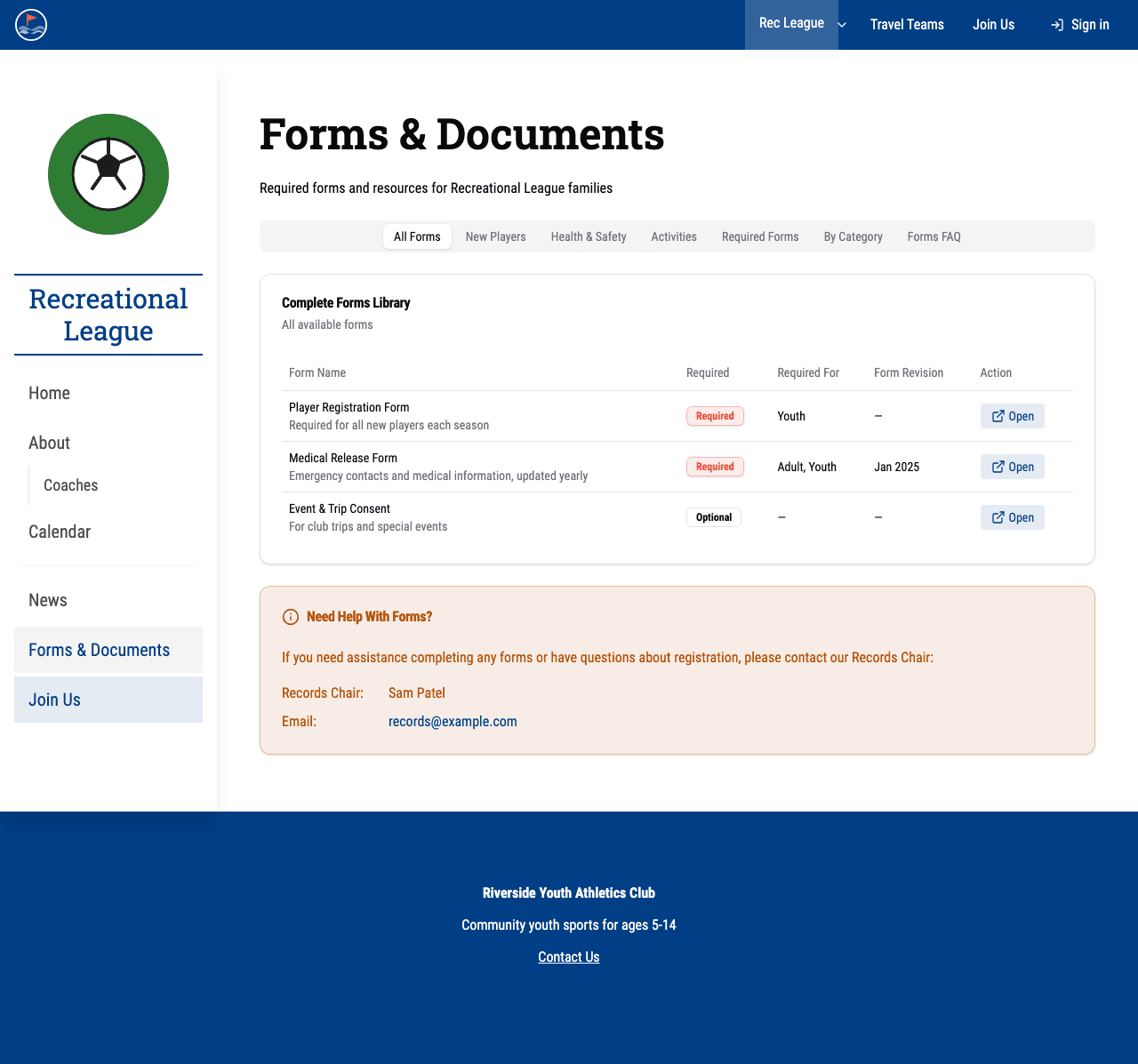
A page that lists forms and documents organized by category, with optional tabs, an FAQ section, and a recordkeeping contact.
When to use it: Use this when you need to provide families with links to required forms, permission slips, medical forms, or other documents.
Key fields:
- Page Title / Description -- The page heading and intro text.
- Forms -- A list of form entries, each with:
- Name, description, and URL (link to the form or document)
- Whether it opens externally
- Whether it is required (overall, for adults, or for youth)
- Form revision info (e.g., "Jan 2025")
- Category (Health and Medical, Activities, or Administrative)
- Tags for grouping into tabs
- Form Tags -- Define tags that create tabs on the page. Each tag has an ID, a display label, and an optional description shown inside the tab.
- Forms FAQ Content -- Markdown content displayed in an FAQ tab.
- Recordkeeping Section -- Title, intro text, and contact info (name and email) for the person who handles forms questions.
Calendar
An embedded calendar view showing public events for a specific group.
When to use it: Use this to give visitors a calendar page for a group (e.g., /travel/calendar).
Key fields:
- Page Title -- The heading above the calendar.
- Description -- Optional text displayed above the calendar view.
- Group -- Which group's events to display. Events from child groups are included automatically.
- Default View -- The initial calendar view: Month, Week, Day, or Agenda.
See Calendar Subscriptions for how visitors add this calendar to their own calendar application, and Managing Calendar Events for creating the events it displays.
Event Registration Form
A special template that is automatically created when you set up a registration form for a calendar event. These pages render the registration form for that event.
When to use it: You do not create these manually. They are generated automatically when a registration form is added to a calendar event. See Event Registration for how to build, publish, and manage those forms. The page content (event ID, form ID, group) is managed through the event's registration settings, not the CMS page editor.
Note: Event Registration Form pages appear in the pages list, but their content is controlled by the event's registration form configuration, not by editing the page directly.