
Sidebar Menus
Add sidebar navigation to pages for easy browsing within a section
Sidebar Menus
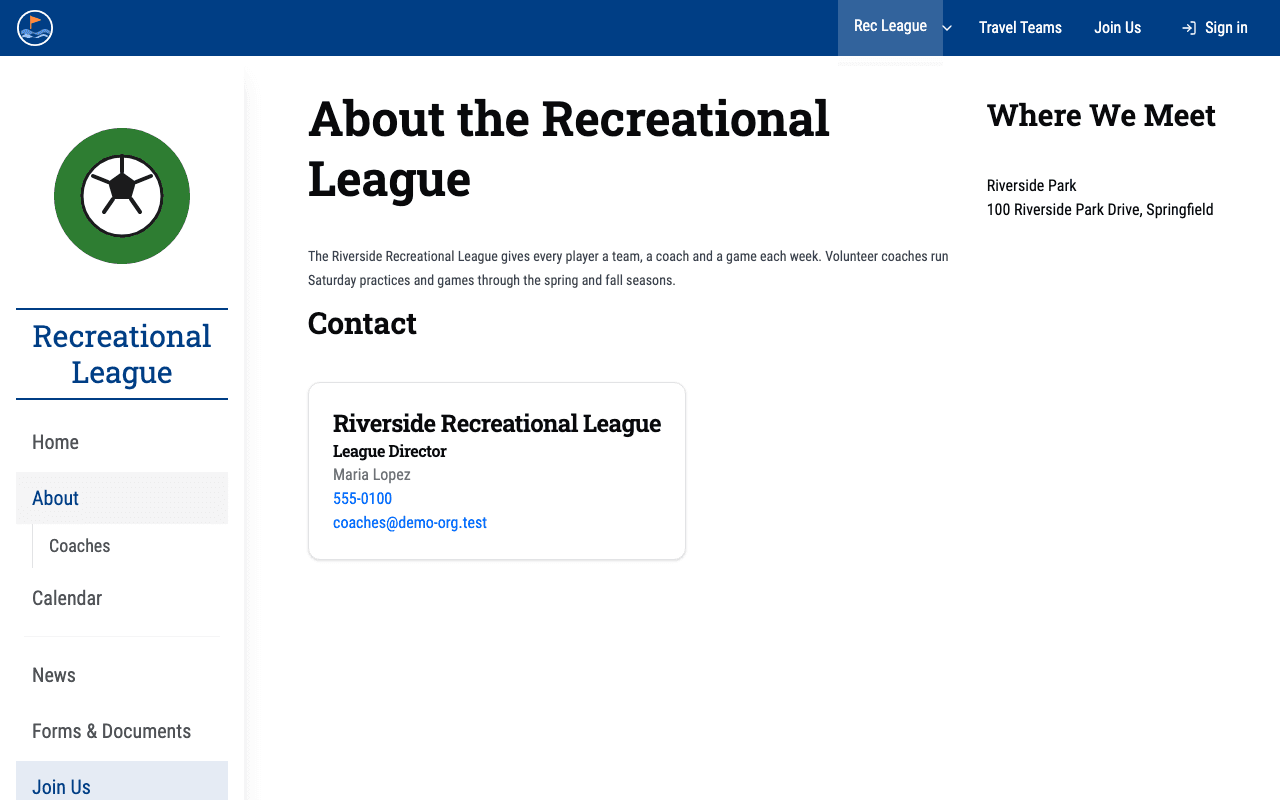
A sidebar menu is a navigation panel that appears on the left side of a page. It helps visitors browse related pages within a section of your site, such as all the pages for a specific group.
How Sidebars Work
Sidebar navigation is powered by the same Menu entities you manage in the admin dashboard (see Menus and Navigation). To add a sidebar to a page, you associate that page with a menu. The menu's items are then displayed as sidebar links alongside the page content.
Associating a Menu with a Page
- Go to
/dashboard/admin/pagesand open the page you want to add a sidebar to. - In the page editor, find the Sidebar Menu dropdown.
- Select a menu from the list. Only menus you have already created will appear here.
- Save the page.
The selected menu's items will now appear as a sidebar when visitors view that page.

Sidebar Menu Properties
When a menu is used as a sidebar, the following menu properties affect its appearance:
- Heading -- If set, a heading is displayed at the top of the sidebar above the menu items. Use this for a section title like "Recreational League" or "Travel Teams."
- Logo -- If set, a logo image is displayed at the top of the sidebar. This can be a group logo that gives the sidebar a branded look.
These properties are configured on the menu itself (at /dashboard/admin/menus), not on individual pages.
Sidebar Inheritance
You do not have to set a sidebar on every page. Sidebars are inherited, so a whole section of your site can share one sidebar with minimal configuration:
- A page can set its own Sidebar Menu to override inheritance.
- If a page has no sidebar menu of its own, the sidebar is inherited from the page's group. Resolution walks up the parent-page chain to find the owning group and uses that group's menu. So child and descendant pages automatically show their section's sidebar without being configured individually.
- Setting a page's Sidebar Menu explicitly overrides the inherited group sidebar. Clearing it to "None" terminates the sidebar for that page -- there is no group fallback in that case.
Best Practices
One Sidebar Menu Per Section
Create a single sidebar menu for each section of your site. For example:
- A "Recreational League Sidebar" menu with links to the league's home, about, calendar, forms, and news pages.
- A "Travel Teams Sidebar" menu with links to the travel program's home, about, and calendar pages.
Share Across Pages
Multiple pages can use the same sidebar menu. This is the recommended approach -- when every page in a section shares the same sidebar, visitors get consistent navigation as they move between pages.
Thanks to group inheritance (see Sidebar Inheritance above), you usually do not need to set the sidebar on every page individually. Set the group's menu once, and descendant pages inherit it automatically. Per-page assignment is only for overrides -- pages that need a different sidebar than the rest of their section.
Highlight the Current Page
The sidebar automatically highlights the menu item that matches the current page's path. This helps visitors see where they are within the section.
Removing a Sidebar
To remove the sidebar from a page:
- Open the page in the editor.
- Change the Sidebar Menu dropdown to "None" (or clear the selection).
- Save the page.
The page will no longer display a sidebar.