
Branding & Site Settings
Customize your website's appearance with logos, colors, and site information
Branding and Site Settings
The branding settings page lets you customize how your organization's website looks and what information appears in browser tabs, search results, and social media previews.
Accessing Branding Settings
Navigate to /dashboard/admin/settings/branding/ to reach the branding settings page.
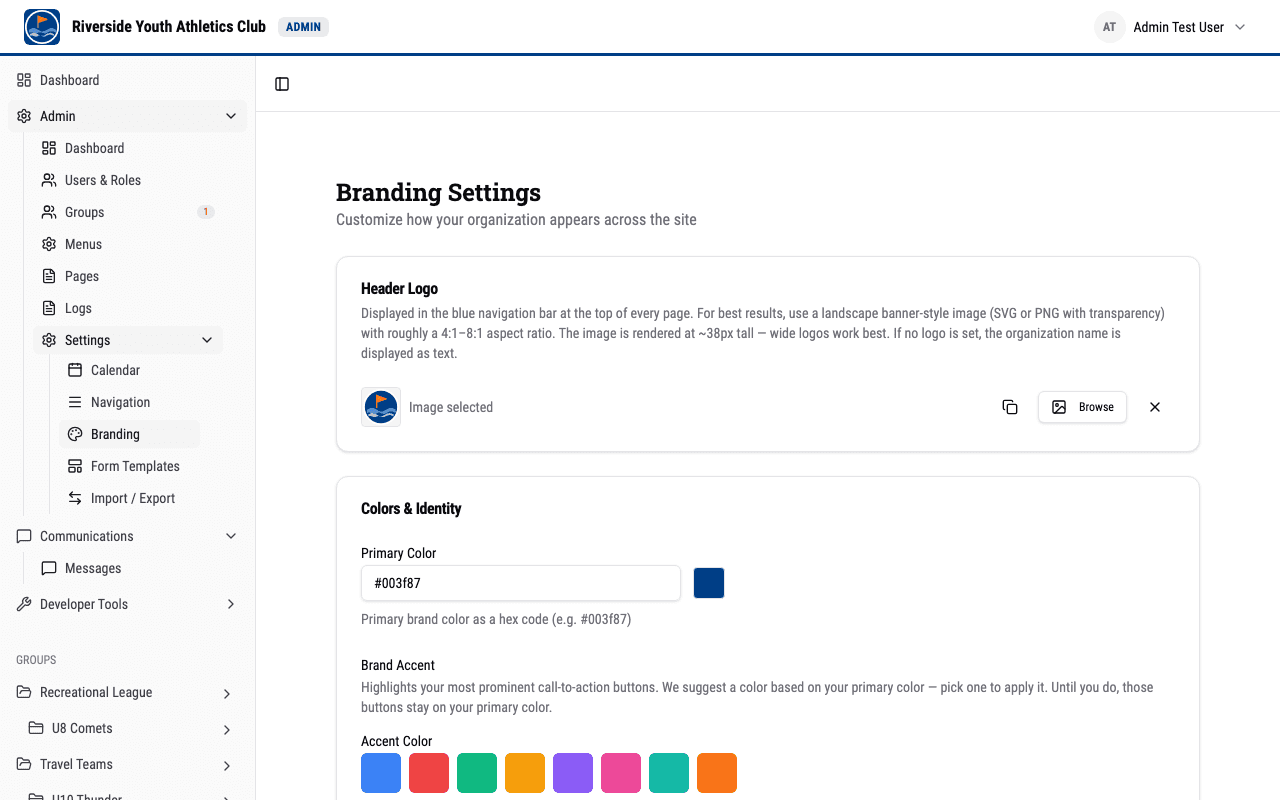
Header Logo
The header logo is displayed in the navigation bar at the top of every page on your site. The bar uses your primary color.
Recommendations:
- Use a landscape banner-style image with roughly a 4:1 to 8:1 aspect ratio (wide and short).
- SVG or PNG with transparency work best so the logo blends with the header background (your primary color).
- The image is rendered at approximately 38 pixels tall, so wide logos are more readable than square ones.
- If no logo is uploaded, the organization name is displayed as text in the header.
To set the header logo:
- Go to
/dashboard/admin/settings/branding/. - In the Header Logo section, use the image picker to upload a new image or select one from your previously uploaded media.
- Click Save Changes at the bottom of the page.
Primary Color
The primary color is a hex color code (e.g., #003f87) used throughout your site for buttons, links, accents, and other interactive elements. It also paints the site header, footer and page headings.
If text in your primary color would be hard to read on a light background, your site shows that text darker so it stays readable, and the branding page shows a note with the adjusted color.
To set the primary color:
- Enter a hex color code in the Primary Color field.
- A color preview swatch appears next to the field so you can verify the color.
- Click Save Changes.
Tip: If you are unsure what hex code to use, search for "hex color picker" in your browser. Many free tools let you pick a color and copy its hex code.
Site Metadata
These settings affect how your site appears in browser tabs and search engine results.
Site Description
A short description of your organization. This text is used in:
- Browser tab titles
- Search engine results (the snippet of text shown below the page title)
- Social media previews when someone shares a link to your site
Keep it concise -- one or two sentences that describe who you are.
Contact Email
The primary contact email address displayed to site visitors. This is shown in various places across the site where contact information is needed.
Footer Content
The footer appears at the bottom of every page. It shows the links from the designated footer menu -- chosen on the Navigation settings page -- together with the markdown footer content you set here.
The footer content field supports markdown formatting, which means you can use:
**bold text**for bold text*italic text*for italic text[link text](https://example.com)for links
For example, you might enter:
**Riverside Youth Athletics Club**

Community youth sports for ages 5-14

[Contact Us](mailto:info@example.com)
Saving Your Changes
After making changes to any settings on the branding page, click the Save Changes button at the bottom of the page. A confirmation message will appear when the settings are saved successfully.
Note: Some changes (like the header logo or primary color) may take a page refresh to appear across the site.